
In today’s digital world, accessibility isn’t just a nice-to-have—it’s essential. PDFs, as one of the most common document formats, often fall short if not designed with inclusivity in mind. The Web Content Accessibility Guidelines (WCAG) provide a framework to ensure that digital content, including PDFs, is accessible to people with disabilities. WCAG 2.2, the latest version, builds on previous iterations like 2.1 and 2.0, offering success criteria organized under four core principles: Perceivable, Operable, Understandable, and Robust (POUR).
PDF remediation—the process of fixing inaccessible PDFs—relies heavily on these criteria. Whether you’re dealing with scanned documents, forms, or complex layouts, understanding WCAG helps create PDFs that work for everyone, from screen reader users to those with low vision. This post breaks down key success criteria relevant to PDFs, with practical remediation tips. We’ll focus on Levels A and AA, as these are the most commonly required for compliance.

Content must be presented in ways users can perceive, regardless of their senses. For PDFs, this often means providing alternatives to visual elements and ensuring readability.
Key Criteria and Remediation
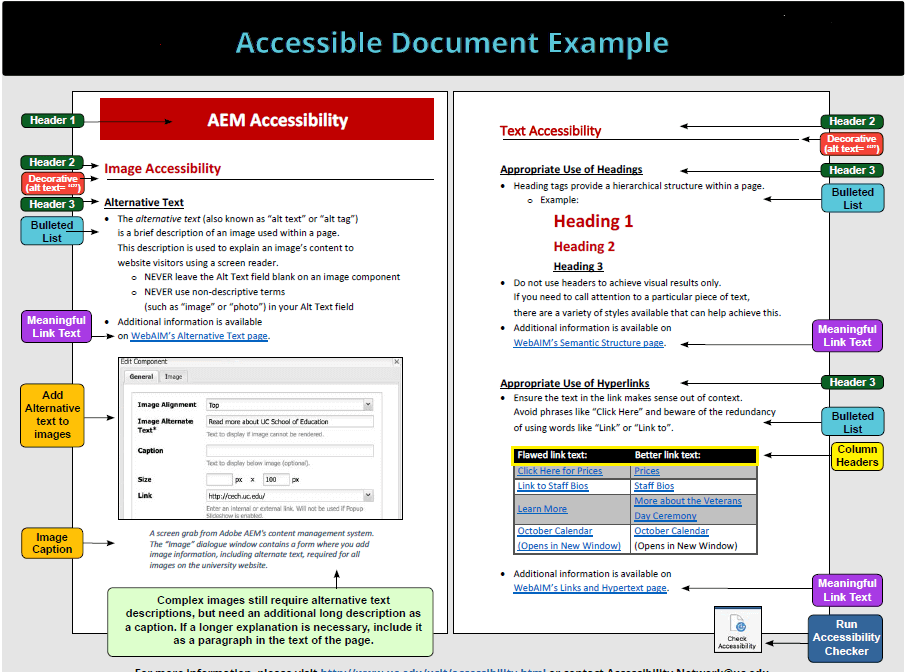
- 1.1.1 Non-text Content (A): All images, charts, and graphics need text alternatives (alt text) that convey the same purpose. In PDFs, scanned images without OCR (Optical Character Recognition) are just pictures—screen readers can’t read them.
- Remediation Tip: Use Adobe Acrobat Pro’s OCR tool to convert scans to searchable text. Then, add alt text via the Tags panel for figures. Mark decorative images as artifacts to skip them.
- 1.3.1 Info and Relationships (A): Structure like headings, lists, and tables must be programmatically determinable. Untagged PDFs lack this, causing screen readers to read content out of order.
- Remediation Tip: Run Acrobat’s “Make Accessible” wizard to add tags. Edit the tag tree for logical hierarchy (e.g., H1 for main titles, List for bulleted items).
- 1.3.2 Meaningful Sequence (A): The reading order must make sense when read linearly, like by a screen reader.
- Remediation Tip: Use the Reading Order tool in Acrobat to reorder content panels. Test with tools like NVDA or JAWS.
- 1.4.3 Contrast (Minimum) (AA): Text must have at least 4.5:1 contrast ratio (3:1 for large text).
- Remediation Tip: Check with Acrobat’s Accessibility Checker or external tools like Colour Contrast Analyser. Adjust colors in the source file if possible, or overlay text in PDFs.
- 1.4.5 Images of Text (AA): Avoid using images for text unless essential; use actual text instead.
- Remediation Tip: Replace rasterized text (e.g., from scans) with editable text during OCR.
Other perceivable issues include color reliance (1.4.1) and reflow (1.4.10, added in 2.1), where PDFs should adapt to zoomed views without horizontal scrolling.
Principle 2: Operable
Users must be able to operate the interface and navigation. PDFs with forms or links need to support keyboard use, as many users can’t rely on a mouse.
Key Criteria and Remediation
- 2.1.1 Keyboard (A): All functionality, like form fields and links, must be keyboard-accessible without timing requirements.
- Remediation Tip: Set a logical tab order in Acrobat’s Fields panel. Ensure interactive elements are tagged as Form or Link.
- 2.4.2 Page Titled (A): PDFs should have a descriptive title.
- Remediation Tip: Go to File > Properties > Description in Acrobat and add a title that appears in the window title bar.
- 2.4.3 Focus Order (A): Focus should move logically, preserving meaning.
- Remediation Tip: Align tab order with reading order. Test by tabbing through the document.
- 2.4.7 Focus Visible (AA): Keyboard focus must be visually apparent.
- Remediation Tip: Use high-contrast focus indicators; Acrobat often handles this if tags are proper, but verify in reflow view.
Newer criteria like 2.5.3 Label in Name (2.1, A) ensure form labels match their programmatic names, crucial for voice control users.
Content and interfaces must be clear and predictable. For PDFs, this involves language settings and error handling in forms.
Key Criteria and Remediation
- 3.1.1 Language of Page (A): The default language must be set for proper screen reader pronunciation.
- Remediation Tip: In Acrobat, set the language in File > Properties > Advanced > Reading Options.
- 3.2.2 On Input (A): Changing form inputs shouldn’t unexpectedly alter context.
- Remediation Tip: Avoid scripts that auto-submit; provide clear instructions.
- 3.3.2 Labels or Instructions (A): Forms need labels for inputs.
- Remediation Tip: Add tooltips and labels to fields. Use the Accessibility Checker to flag missing ones.
- 3.3.3 Error Suggestion (AA): Suggest fixes for input errors.
- Remediation Tip: In PDF forms, include error messages that are readable by screen readers.
Criteria like 3.3.8 Accessible Authentication (2.2, AA) avoid cognitive tests in logins, relevant for secure PDFs.
Principle 4: Robust
Content must work with current and future user agents, including assistive technologies.
Key Criteria and Remediation
- 4.1.1 Parsing (A): Elements must have complete start/end tags and no duplicates.
- Remediation Tip: Acrobat’s tag structure ensures this; run the full check to fix parsing errors.
- 4.1.2 Name, Role, Value (A): UI components (e.g., forms) must expose name, role, and value programmatically.
- Remediation Tip: Proper tagging assigns roles (e.g., Button, CheckBox). Test with screen readers.
- 4.1.3 Status Messages (2.1, AA): Dynamic changes must be announced without focus shift.
- Remediation Tip: For interactive PDFs, use ARIA-like attributes if scripting is involved.
Best Practices for PDF Remediation
Start with accessible source files (e.g., Word with headings) to minimize fixes. Use tools like Adobe Acrobat Pro for tagging and validation. Always test manually: reflow the PDF, use keyboard navigation, and listen with a screen reader.
| Common Issue | WCAG Criterion | Fix |
|---|---|---|
| No alt text | 1.1.1 (A) | Add via Tags panel |
| Poor reading order | 1.3.2 (A) | Use Order panel |
| Insufficient contrast | 1.4.3 (AA) | Adjust colors |
| Untagged forms | 2.1.1 (A) | Tag fields and set tab order |
| No document language | 3.1.1 (A) | Set in properties |
| Parsing errors | 4.1.1 (A) | Validate tag tree |
Avoid security settings that block text access, as they hinder screen readers. For compliance, aim for WCAG 2.1 or 2.2 AA, which aligns with standards like PDF/UA.
Conclusion
Mastering WCAG success criteria transforms PDF remediation from a chore into a pathway for inclusive design. By addressing perceivable elements, operable interactions, understandable content, and robust compatibility, you ensure PDFs serve all users. Remember, accessibility benefits everyone—start small, test often, and iterate. With tools and these guidelines, creating compliant PDFs is achievable.